
Security Questionnaire in Digital Risk Analyzer
Any organization would want to understand the security posture of a vendor or partner before collaborating with them. Digital Risk Analyzer simplifies this evaluation with its Security Questionnaire feature. Users can share a standardized cybersecurity questionnaire covering key areas such as application, network, domain, and email security to vendors. The questionnaire assessment provides a structured and comprehensive view of a vendor’s security readiness.
Instead of creating your own checklist or depending on scattered information, you can rely on this built-in questionnaire to assess how well a company protects its systems and data. All responses are centrally captured within Digital Risk Analyzer, making it easier to review, track, and compare vendors based on their security practices.
Use cases
- Before purchasing a SaaS tool, send the questionnaire to assess the vendor’s security controls and decide if they meet your standards.
- Use the questionnaire to collect and maintain proof of third-party security practices for audits like ISO, SOC 2, or GDPR.
- Send the same questionnaire to multiple vendors to easily compare their security practices and choose the safer option.
- Reassess existing partners regularly by sending the same standardized questionnaire to track any changes in their security posture.
Accessing security questionnaire
To access the security questionnaire, follow the steps below:
- Log in to your Digital Risk Analyzer account.
- Click the vendor domain you want to assess using the Security Questionnaire.
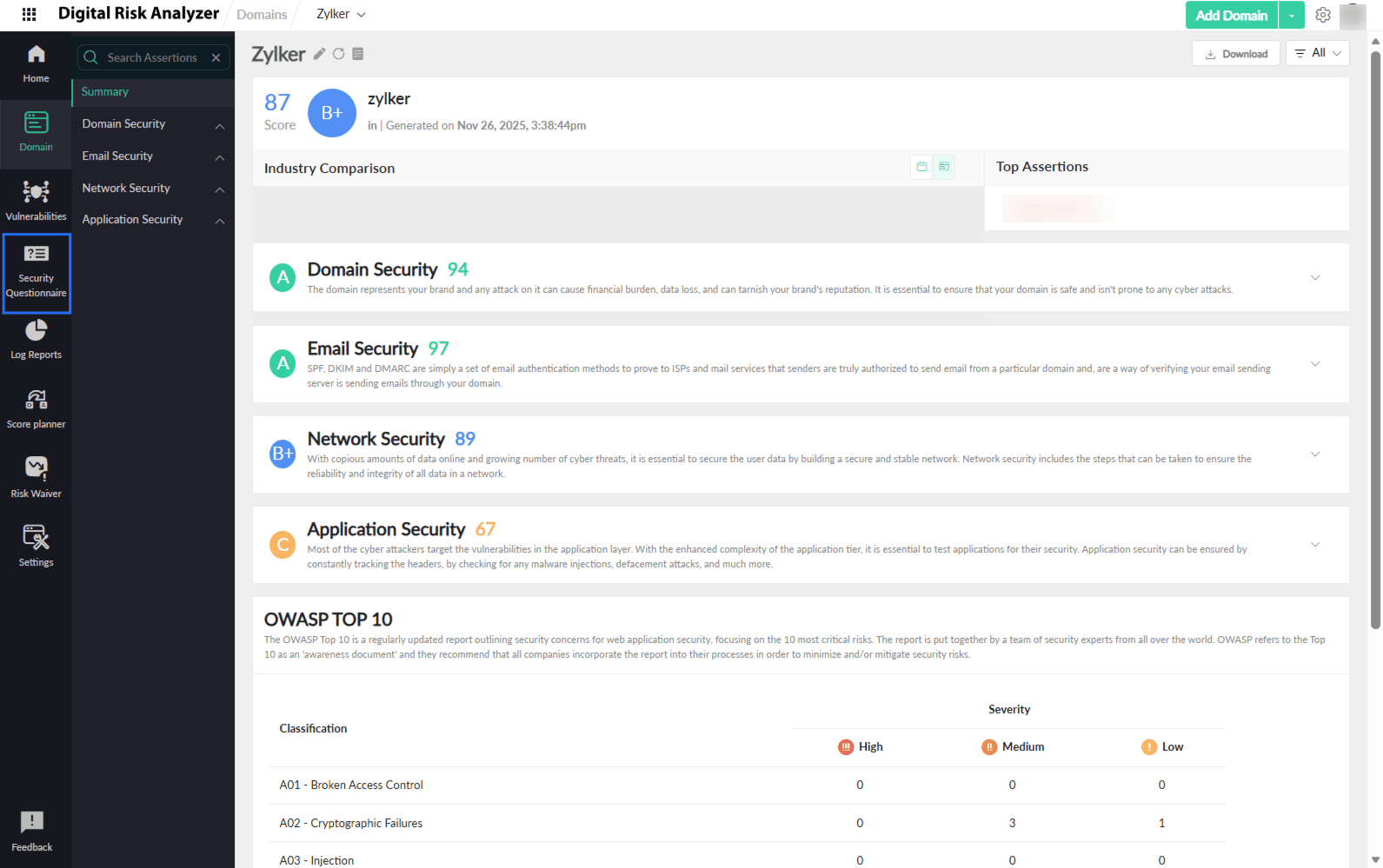
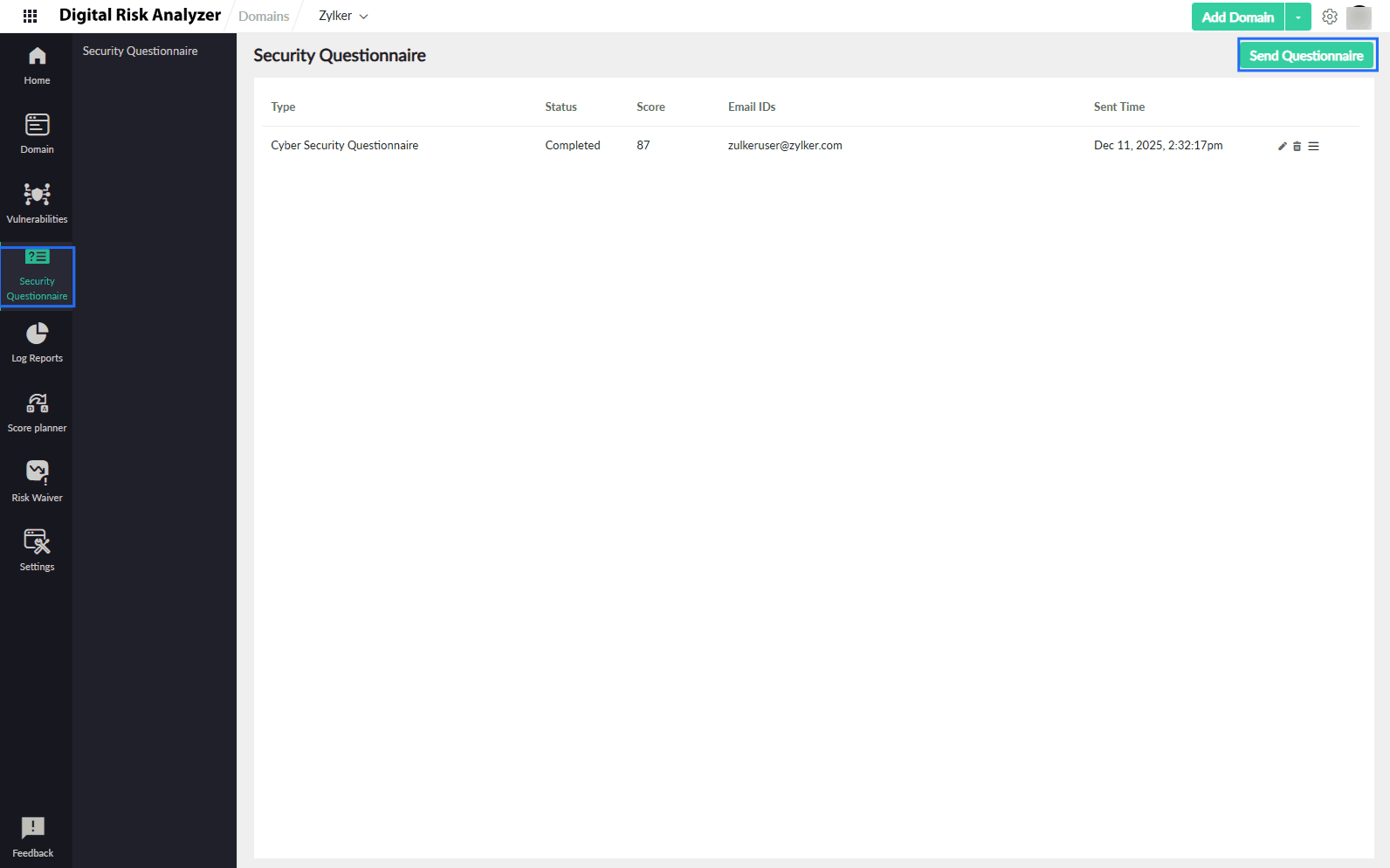
- In the left navigation menu, navigate to Security Questionnaire > Send Questionnaire.
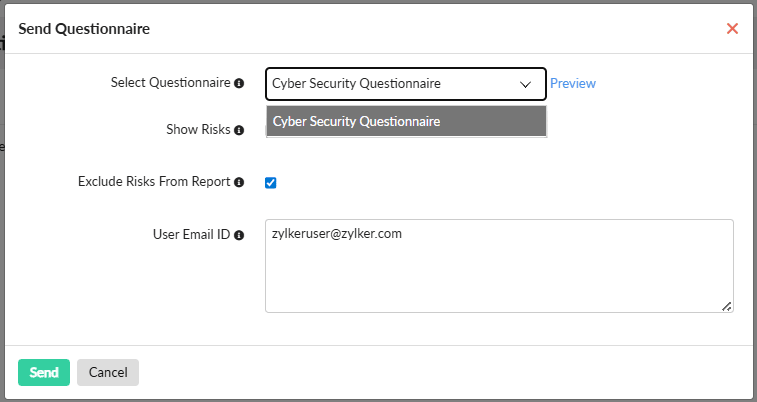
- In the form that appears, in the Select Questionnaire drop-down menu, select Cyber Security Questionnaire.
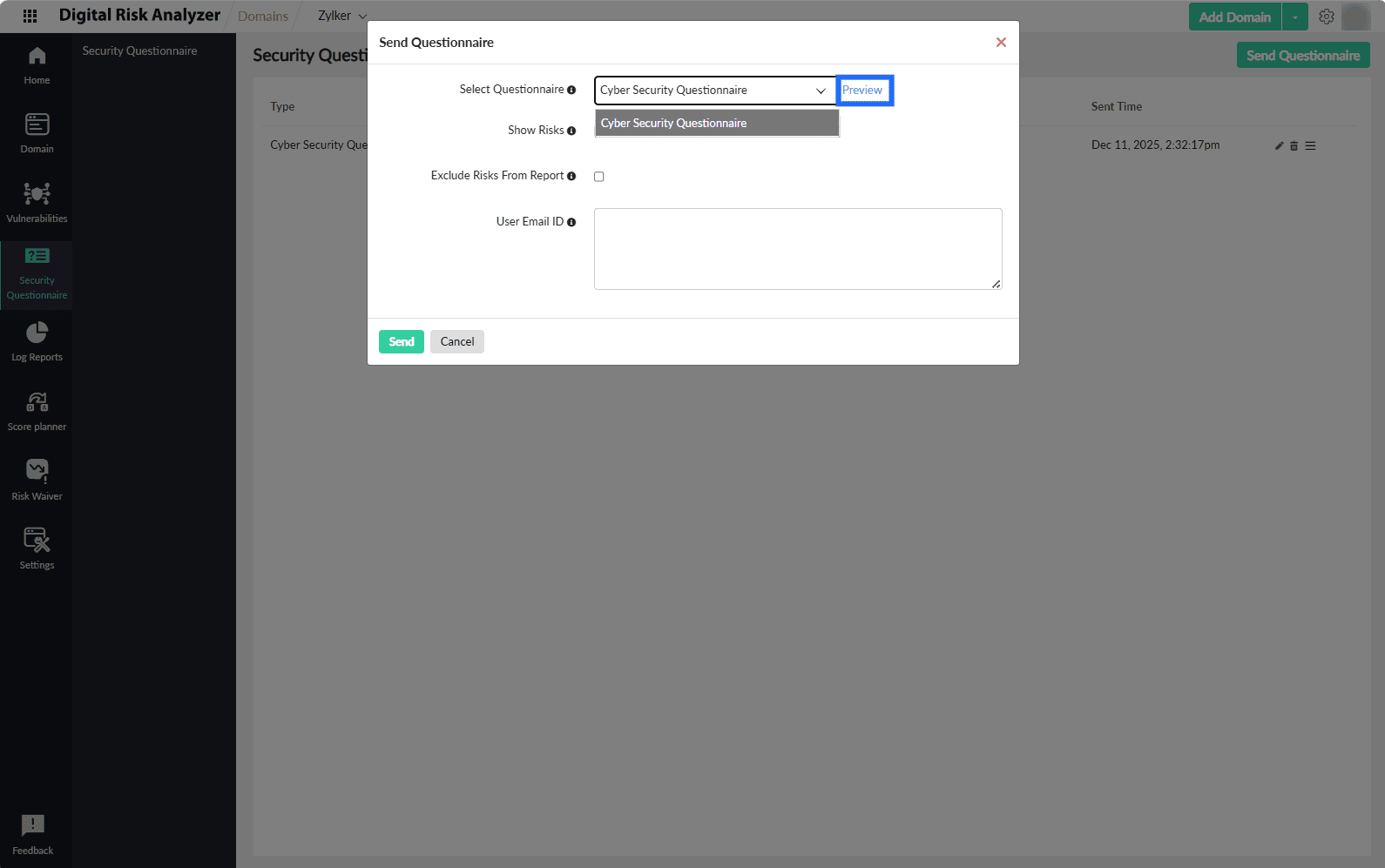
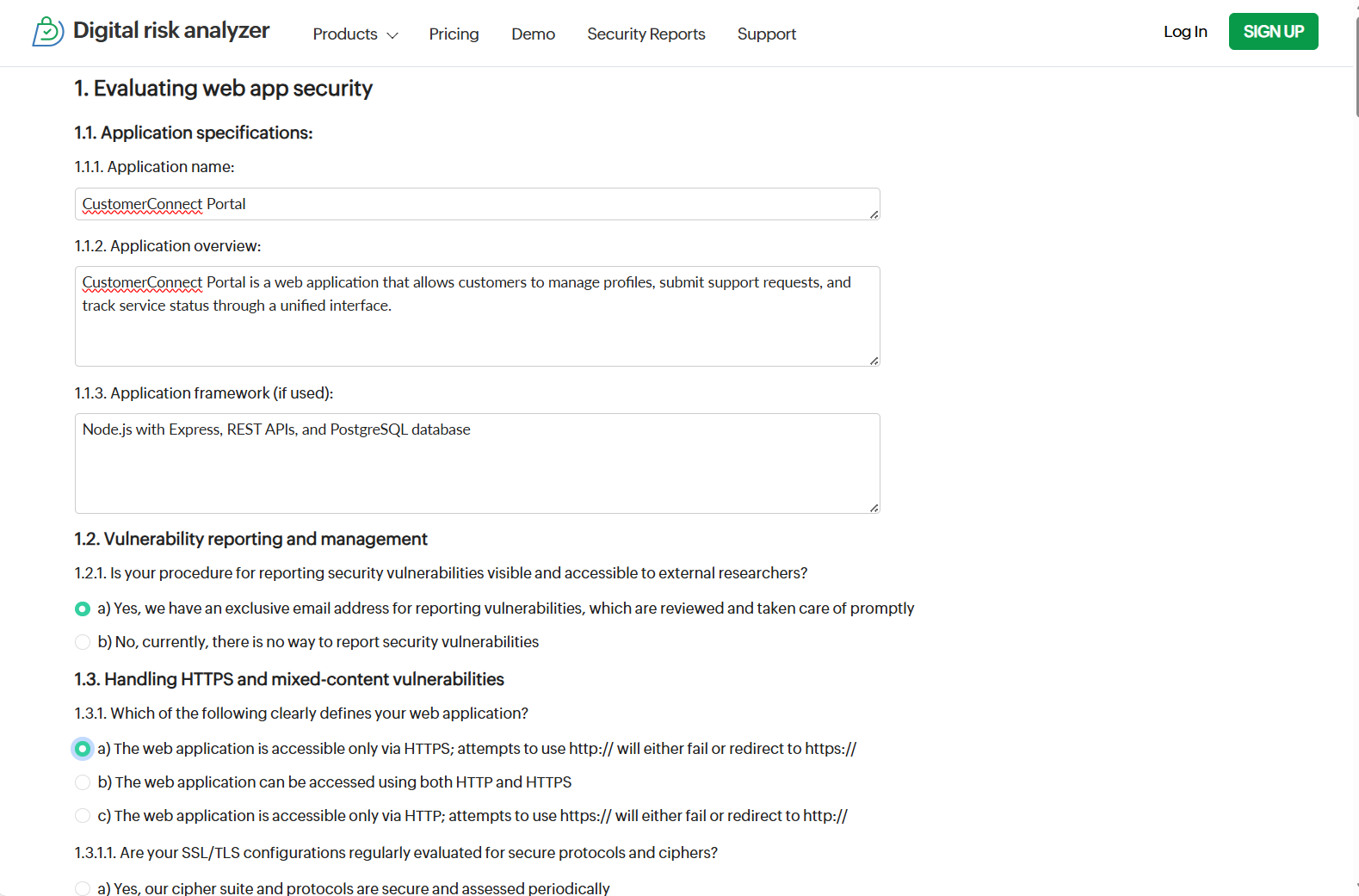
- Click Preview to view a quick, read-only snapshot of the questionnaire.
- By default, the Show Risks option is disabled so that associated risks are revealed dynamically based on the answers provided. If you want to hide risks, contact support.
- You can choose to show the associated risks identified based on vendor response in your report. Check the Exclude Risks from Report field to hide the risks identified from the questionnaire.
- Provide the email IDs, one per line, of all vendors and collaborators who will answer the questions in the User Email IDs field.
- Click Save and the questionnaire details appear on the Security Questionnaire list page with the status Yet to start.
Role of collaborators
A collaborator is a person who answers the questionnaire. Their functions are as follows:
- Once the questionnaire is created, the collaborator receives a mail from the Digital Risk Analyzer with a link to the security questionnaire.
- They can click the link to open the questionnaire and start answering the questions. The collaborator can share the link with other collaborators so they can contribute before submission.
Note- While answering, the associated risks are displayed based on the selected choice and the questionnaire configuration. Vendors can also add comments or additional details to provide better clarity to the sender.
- If a collaborator has clicked Submit, then no other collaborator can answer the questionnaire.
- To enable multiple submissions from multiple collaborators, please contact support.
User actions on security questionnaire
The steps below list the actions performed by the user once the questionnaire is submitted by the vendor:
- Once all collaborators from the vendor have submitted their responses, the questionnaire status changes to Submitted.
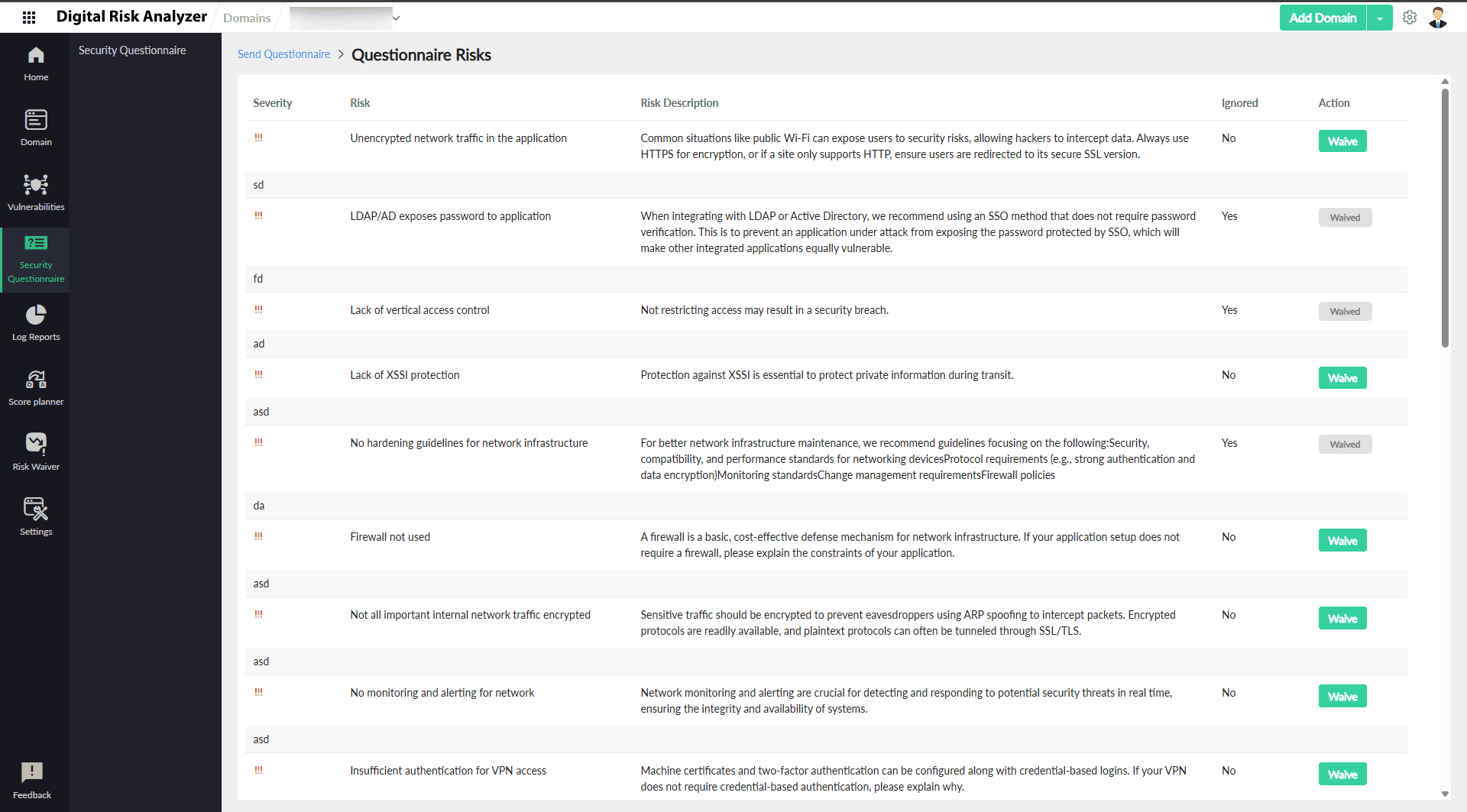
- To review the response, click the hamburger
 icon, and select View Response.
- From the Questionnaire Risks page, the user can analyze the vendor risk and comments and waive any risks using the Waive button.
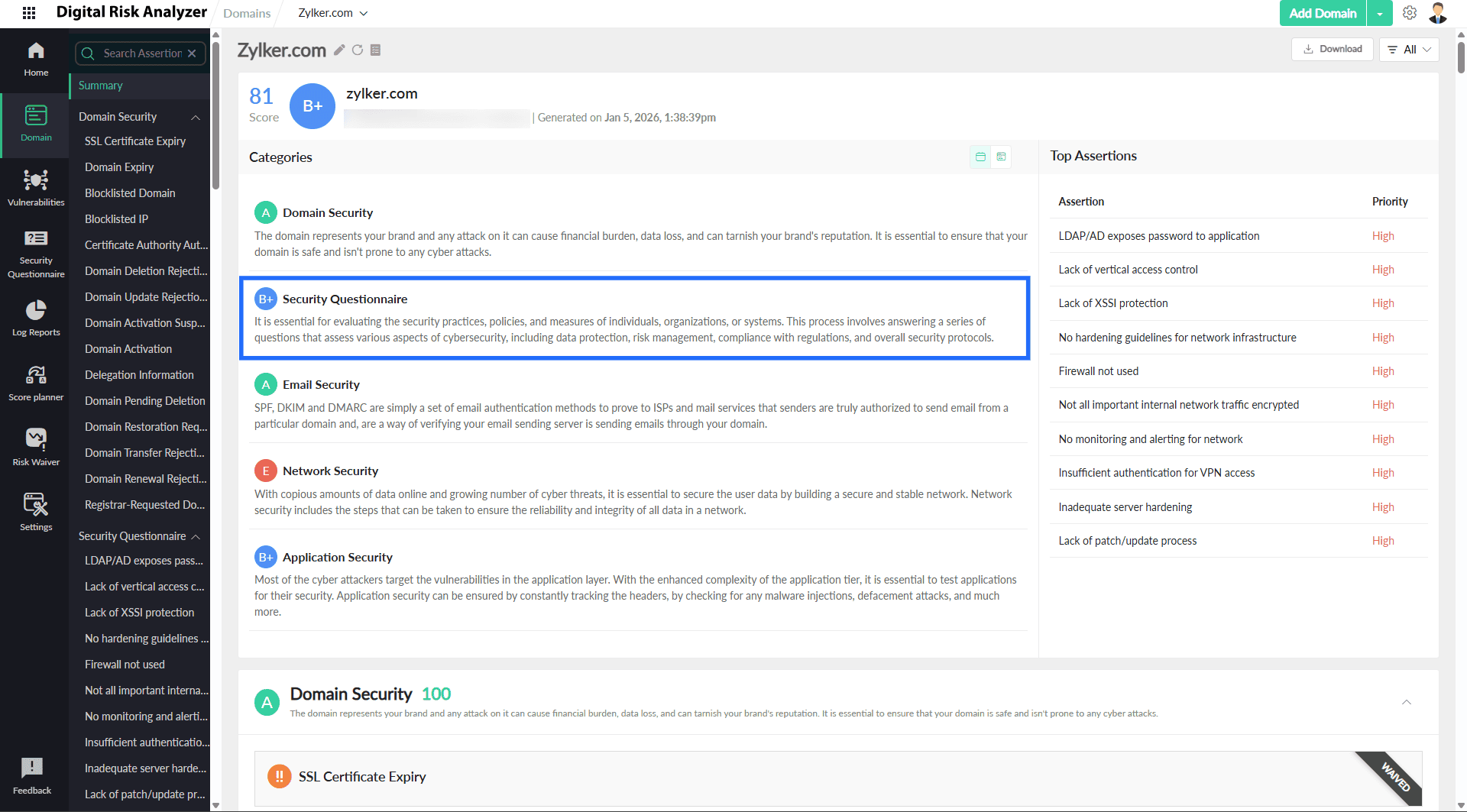
- After reviewing the risks, on the Security Questionnaire list page, the user can click the hamburger icon and select Mark as Complete. The questionnaire status changes to Complete and the security score is included in the report in the upcoming scan.
- If the user wants to add more collaborators later, on the Security Questionnaire list page, click the hamburger icon, and select Mark as open. They can click the edit
 icon and add more collaborators' email IDs in the User Email IDs field and click Save.